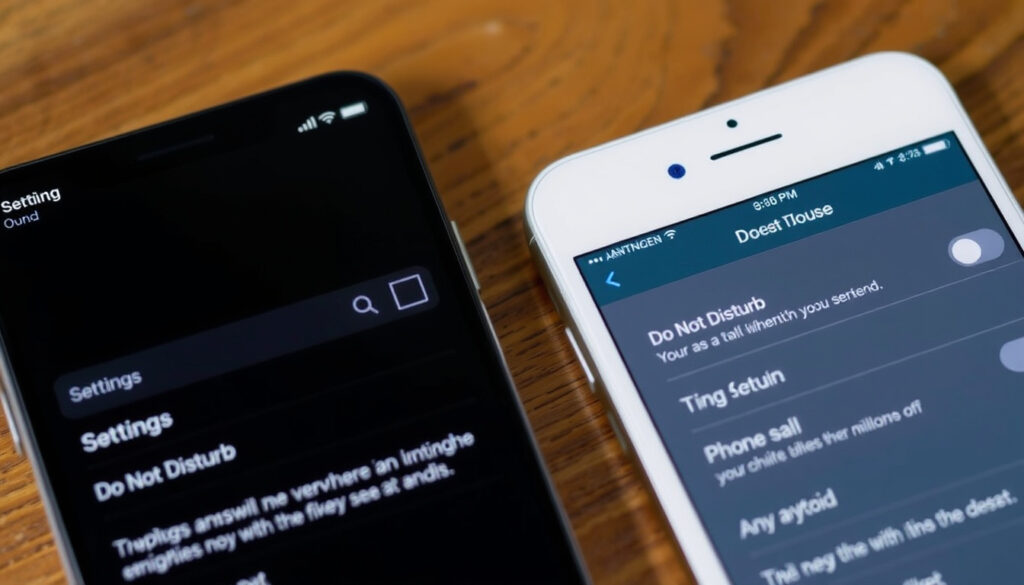
How to Turn Off Do Not Disturb on iPhone and Android
There’s that quiet moment when your phone won’t buzz, ring, or light up, and the crescent moon icon is still stubbornly in the status bar. You swipe, you tap, and nothing changes. Before frustration kicks in, here’s exactly how to turn off Do Not Disturb on both iPhone and Android — with official steps and fixes for when it won’t turn off.
Do Not Disturb affects notifications and calls until turned off · Enabled by user or schedule · Crescent moon icon indicates active Do Not Disturb on iPhone · To turn off on iPhone swipe down from top-right corner · On Android swipe down twice, tap Do Not Disturb · Common stuck cause active Focus schedule
Quick snapshot
- Turning off DND via Control Center works on all modern iPhones (iOS 15+) — Apple Support
- Turning off DND via Quick Settings works on Android 8.0+ — Google Support
- DND can be scheduled in Focus settings on iPhone — Apple Support
- Exact steps on older iPhones (pre-iOS 15) may vary — Apple Support
- Some Android manufacturers (Samsung, Pixel) have minor UI differences — Google Support
- DND synced across devices can cause unexpected activation — Apple Support (video)
- DND moved under Focus controls in iOS 15 (2021) — Apple Support
- Android introduced Quick Settings DND toggle in Android 8.0 (2017) — Google Support
- No major changes to DND controls in iOS 18 or Android 14 — Apple Support
- Apple may consolidate Focus modes further — Apple Support
- Android likely to keep DND as a core Quick Setting — Google Support
- Check for schedules and Smart Activation to prevent recurrence — Apple Support
Four key facts about Do Not Disturb you should know before diving into the steps:
| Fact | Details |
|---|---|
| Do Not Disturb purpose | Silences calls, alerts, and notifications — Apple Support |
| iPhone activation indicator | Crescent moon icon in status bar — Apple Support Community |
| Android activation indicator | Moon icon or “Do Not Disturb” chip in status bar — Google Support |
| Common cause of stuck DND | Active schedule or Smart Activation in Focus settings — Apple Support |
How do I turn my do not disturb mode off?
Whether you’re on an iPhone or Android, turning off DND is usually quick — unless a schedule or automation is keeping it on. The fastest method uses the control panel, and the fallback is the Settings app.
How to turn off Do Not Disturb on iPhone using Control Center
- On iPhones with Face ID (iPhone X and later): swipe down from the top-right corner to open Control Center. On iPhones with Touch ID (iPhone 8 and earlier): swipe up from the bottom edge — Apple Support
- Tap the Focus tile (the crescent moon icon) to turn off Do Not Disturb. If the button shows another Focus name (Personal, Work, Sleep), tapping it turns that Focus off — Apple Support
- You’ll know Do Not Disturb is off when the button text says “Focus” and the icon dims — Apple Support Community
“On iPhone, Do Not Disturb is turned off from Control Center by opening Control Center and tapping the Do Not Disturb or Focus button until the button text changes to Focus and the icon dims.” — Apple Support
How to turn off Do Not Disturb on iPhone using Settings
- Open Settings > Focus > Do Not Disturb and toggle off the switch at the top — Apple Support
- If you see a schedule listed under “Set a Schedule,” tap it to disable or modify the automatic on/off times — Apple Support
- You can also ask Siri: “Turn off Do Not Disturb” — Apple Support
What this means: On iPhone the quickest path is Control Center, but if DND keeps reactivating, the culprit is almost always a schedule. Check that first before digging deeper.
How to turn off Do Not Disturb on iPhone and Android?
Both platforms offer nearly identical quick-toggle methods. Below are the steps for each, side by side.
Turning off Do Not Disturb on Android
- Swipe down twice from the top of the screen to open Quick Settings — Google Support
- Tap the Do Not Disturb tile (moon icon) to turn it off. If the tile is not visible, swipe left to find it or edit Quick Settings to add it — Google Support
- Alternatively, press the volume down button and tap “Turn off now” — Google Support
“On Android, swipe down twice from the top of the screen to open Quick Settings, then tap the Do Not Disturb tile to turn it off.” — Google Support
Turning off Do Not Disturb on iPhone
- Open Control Center (swipe down from top-right on Face ID models; swipe up from bottom on older models) — Apple Support
- Tap the Focus tile and then tap Do Not Disturb to toggle it off, or tap the currently active Focus to turn it off — Apple Support
- You can also go to Settings > Focus > Do Not Disturb and toggle off — Apple Support
The trade-off: Android gives you a tactile volume-button shortcut, while iPhone relies purely on touch. Both are equally fast once you know where to tap, but if you have a smartphone with a custom skin (like Samsung One UI), the icon placement might shift slightly.
Why is my iPhone stuck on Do Not Disturb?
If the crescent moon icon stays on even after you’ve tried toggling it off, it’s likely due to a schedule, Smart Activation, or a misinterpreted Focus mode. Here’s how to diagnose it.
Check scheduled Do Not Disturb in Focus settings
- Open Settings > Focus > Do Not Disturb and scroll to “Set a Schedule” — Apple Support
- If a schedule is active, tap it and set the end time to turn off the automatic activation, or toggle off “Scheduled” completely — Apple Support
Disable Smart Activation
- In the same Focus settings, look for “Smart Activation” and turn it off. This prevents Do Not Disturb from activating based on time, location, or app usage — Apple Support
- Smart Activation can be triggered by routine behaviors, making it seem like DND turns itself back on — Asurion Tech Tips
Restart iPhone if necessary
- Press and hold the side button and volume button until the power-off slider appears, then swipe to turn off. After a minute, press and hold the side button to restart — Apple Support
- A restart clears temporary glitches that may keep DND stuck — Apple Support Community
The catch: The “stuck” feeling often happens because you’re actually in a different Focus (like Sleep or Driving) that also uses the moon icon. Always check which Focus is active in Control Center — the label tells the true story.
How to get rid of crescent moon on iPhone?
The crescent moon icon is the universal symbol for Do Not Disturb on iOS. Removing it is straightforward once you know where to tap.
Turn off Do Not Disturb in Control Center
- Swipe down to open Control Center and tap the moon icon to disable Do Not Disturb — Apple Support
- If the moon icon is not there but you see a Focus label, tap that and then select “Do Not Disturb” to toggle it off — Apple Support Community
Disable Focus schedules in Settings
- Open Settings > Focus > Do Not Disturb and check for any scheduled activations. Turn off “Scheduled” or adjust the end time to a past time — Apple Support
- Disable “Share Across Devices” if you don’t want DND to mirror on your iPad or Mac — Apple Support (video)
Why this matters: A persistent moon icon usually means the phone is obeying a schedule you set and forgot. Disabling the schedule is the only permanent fix — toggling it off in Control Center is temporary if the schedule reactivates later.
How to turn DND on/off quickly?
Speed matters when you need silence or need to be reachable. Both platforms have dedicated shortcuts that take less than two seconds.
Using Control Center on iPhone
- You can add a dedicated Do Not Disturb shortcut to Control Center: Settings > Control Center > Customize Controls > add “Focus” — Apple Support
- Once added, simply swipe down from the top-right corner and tap the Focus button to toggle DND on or off — Apple Support
Using Quick Settings on Android
- After swiping down twice, the Do Not Disturb tile is usually in the first row. Tap it to toggle — Google Support
- If it’s missing, edit Quick Settings by tapping the pencil icon and dragging the DND tile into the visible area — Google Support
The implication: Customizing your quick controls saves you several taps every day. On iPhone, adding Focus to Control Center takes 30 seconds; on Android, arranging Quick Settings takes even less. It’s worth the one-time setup.
The fastest way to disable Do Not Disturb is via the quick panel — Control Center on iPhone, Quick Settings on Android. But if you find yourself toggling it repeatedly, a schedule or Smart Activation is almost certainly the cause. Invest the minute to check your Focus settings, and the moon icon will stay gone until you want it back.
On iPhones running iOS 15 or later, Do Not Disturb is now part of the Focus system. Tapping the moon icon in Control Center may actually toggle a different Focus if you have multiple set up. Always read the button label — it tells you which mode is active.
The pattern: Quick controls provide speed, but configuration provides permanence.
Summary
Turning off Do Not Disturb on your iPhone or Android phone is a two-second job — unless a schedule or Focus automation keeps turning it back on. For iPhone users, the crescent moon icon in the status bar is the giveaway; for Android users, it’s the moon chip in Quick Settings. Both platforms offer a quick toggle through their control panels, and both allow scheduling that can cause the “stuck” feeling. The real fix is always in Settings: disable or edit the schedule, and turn off Smart Activation. For anyone tired of explaining “my phone was on silent and I didn’t see your message,” the choice is clear: learn the two-tap toggle, or invest five minutes in checking your Focus or DND settings. Your battery will last longer, and your friends will thank you. For other phone troubleshooting, see our guides on Is AT&T Down? and How to Create a Gmail Account.
support.apple.com, discussions.apple.com, support.apple.com, support.apple.com, att.com, discussions.apple.com
Frequently asked questions
Can I schedule Do Not Disturb to turn off automatically?
Yes. On iPhone, go to Settings > Focus > Do Not Disturb > Set a Schedule, then set both the start and end times. On Android, go to Settings > Sound & vibration > Do Not Disturb > Schedules and set a custom schedule with an end time — Apple Support, Google Support
Why does my Do Not Disturb keep turning back on?
Most likely due to an active schedule or Smart Activation. On iPhone, check Focus > Do Not Disturb > Set a Schedule. On Android, check Settings > Sound & vibration > Do Not Disturb > Schedules. Also disable Smart Activation on iPhone to prevent automatic triggers — Apple Support, Asurion Tech Tips
Does turning off Do Not Disturb affect my alarm?
No. Alarms will still sound even when Do Not Disturb is active on both iPhone and Android. Turning off DND does not affect alarm behavior — Apple Support, Google Support
How to turn off Do Not Disturb for specific apps?
On iPhone, you can set app exceptions in Focus > Do Not Disturb > Allowed Apps. On Android, go to Settings > Sound & vibration > Do Not Disturb > App exceptions to allow certain apps to bypass DND — Apple Support, Google Support
Does Do Not Disturb block SMS messages from certain contacts?
By default, Do Not Disturb silences all incoming SMS messages. You can allow calls and messages from favorites or specific contacts in Focus settings (iPhone) or DND exceptions (Android) — Apple Support, Google Support
Can I turn off Do Not Disturb without unlocking my phone?
Yes. On iPhone, you can open Control Center from the lock screen (swipe down from top-right) and tap the Focus tile. On Android, you can swipe down from the top twice to access Quick Settings from the lock screen and tap the DND tile — Apple Support, Google Support
How to turn off Do Not Disturb on iPad?
On iPad, swipe down from the top-right corner to open Control Center, then tap the Focus tile to turn off Do Not Disturb. You can also go to Settings > Focus > Do Not Disturb and toggle off — Apple Support
Does Do Not Disturb affect phone calls from repeated callers?
On iPhone, if “Repeated Calls” is enabled, a second call from the same number within three minutes will ring through. On Android, you can set priority calls to allow calls from favorites or repeated callers — Apple Support, Google Support
More related posts
 LA Clippers vs Miami Heat Match Player Stats: Dec 1 Box Score
 Amazon Prime Video Login: How to Sign In & Fix TV Issues
 Poker Face Season 2 – Release Date, Cast, Episodes and Updates
 A Como Esta El Dolar – Current Argentina Exchange Rates
 2024 Toyota 4Runner: Price, Specs & Problems
 The Bad Guys 2 Showtimes: Ireland Cinemas, Tickets & Times
 ‘I Just Lost My Dawg’ Meme: Origin, Meaning & TikTok Rise
 How to Tame a Silver Fox Full Movie: Verified Info & Watch Online
